
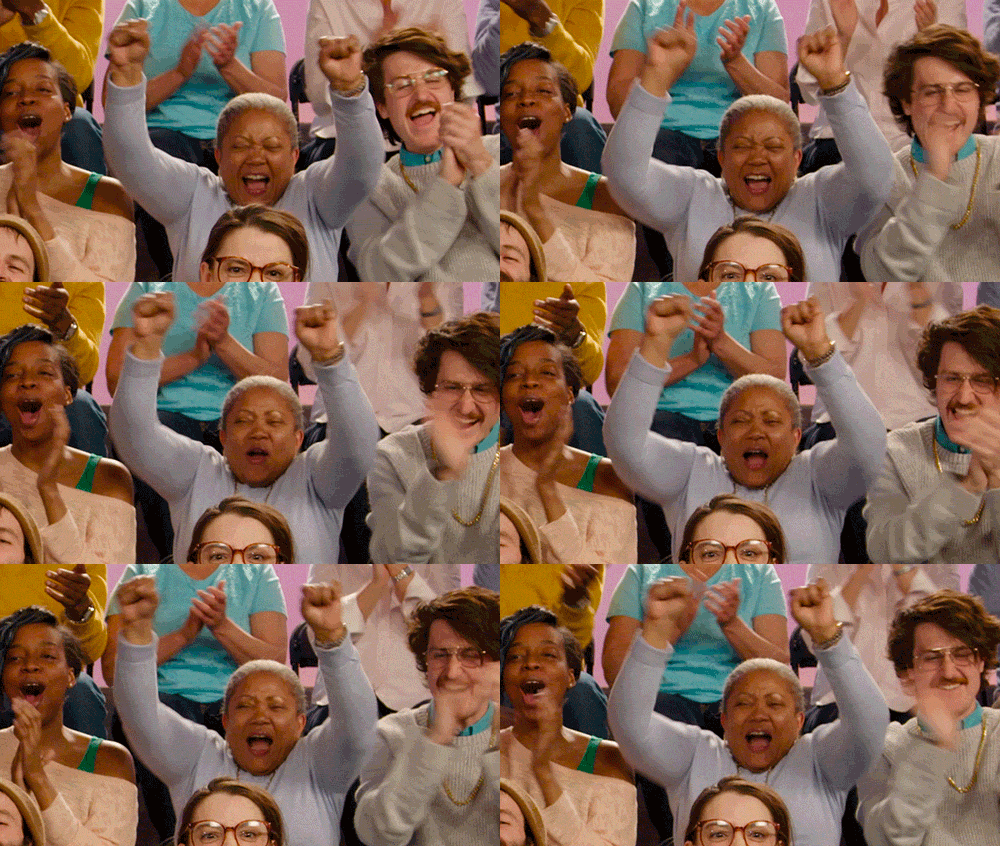
Happy reaction
Big celebration
Clear expressions and a memorable loop make this a strong multi-face example.
GIPHY Originals ↗Edit an animated GIF online. Replace, blur, retouch, or select faces in an existing GIF while keeping the original motion and timing.
Uploads are sent through secure server-side API credentials.
These popular animated examples show the clear expressions, readable faces, and short visual beats that work well for face editing.
Clear expressions and a memorable loop make this a strong multi-face example.
GIPHY Originals ↗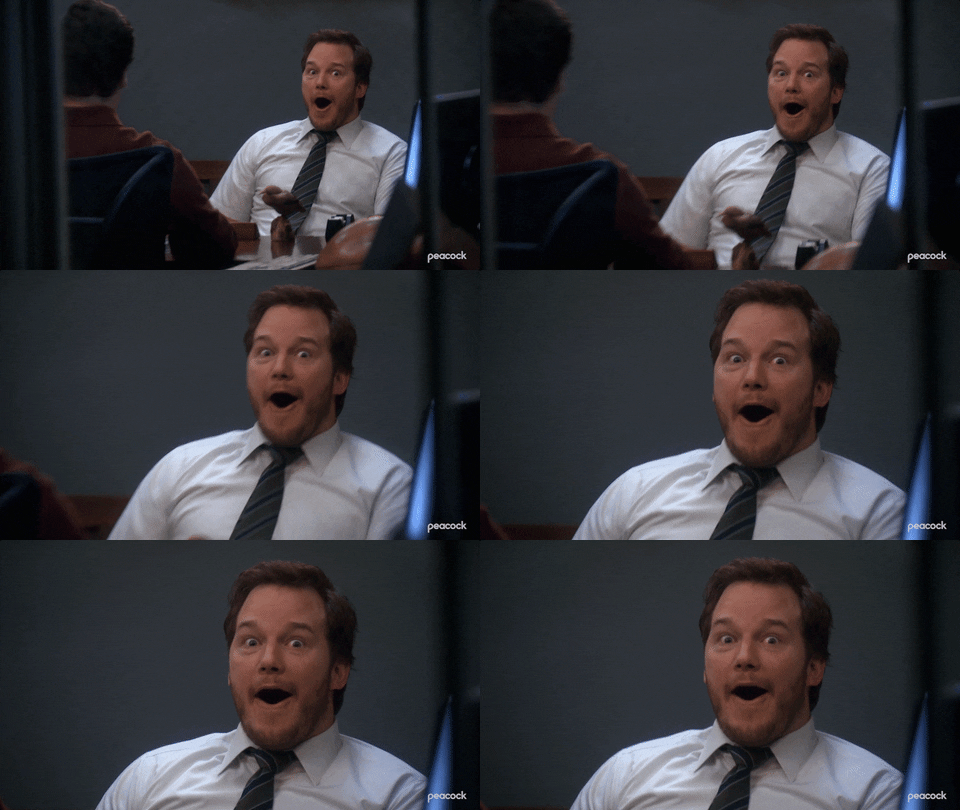
A large, expressive face gives the editor a clear target throughout the motion.
Parks and Recreation on GIPHY ↗
Stable framing and a readable expression make motion review easier.
Paper Triangles on GIPHY ↗Examples are shown for visual inspiration. Edit and share only media you have permission to use.
This single pillar page keeps closely related GIF editor tasks together, so people can upload once and choose the change they need.
Bring a new portrait into a reaction, meme, or short loop with motion-aware tracking.
Keep the moment, remove the identity. Follow a selected face even when it moves.
Apply subtle tone, lighting, and expression corrections across the complete loop.
Detect everyone in the loop, assign a treatment to each person, then preview the result together.
The online workflow keeps technical animation processing behind three clear steps.
Start with the original animated file. Short, clear loops with a visible face give the strongest result.
Replace, blur, retouch, or select several faces. The editor follows the subject throughout the animation.
Play the edit before export. Check fast motion, turns, and occlusions—not just the opening moment.
People searching for GIF apps and GIF editing software often need the same outcome: open a file, make a precise change, and preview the animation. The web editor keeps that workflow in one place.
Open the editor in a modern browser and start with the GIF you already have.
Switch between replace, blur, retouch, and multiple-face modes without learning another app.
Check the complete animated loop before exporting rather than judging a single still image.
Yes. The workflow is designed around existing GIFs: upload the file, choose the face and edit type, then preview how the change holds across the full loop.
Yes. The editor applies the selected treatment across the animated sequence so the subject stays consistent as the GIF moves.
Face swap is one editing action. A broader GIF editor can also blur an identity, apply consistent retouching, or select different treatments for multiple people.
Yes—the route concept preserves the animation and original timing. A production inference service would rebuild the edited sequence into a standard animated GIF.
Use a clear loop where the face is large enough to see, stays visible, and is not heavily blocked by hands, text, or fast motion.
Only when you have the right to use the media and the person has consented. Avoid deceptive impersonation and disclose synthetic edits when context could be misleading.
Upload an existing loop and choose the edit you need.
Open GIF editor ↗